
User Guide
Thank you for choosing Lantiv Timetabling Turbo!
Please use the guide below to get familiar with the program and explore its full capabilities. If you have any questions, feel free to contact us at support@lantiv.com — we’ll be happy to help.
1. Getting Started

When you open a file, the first thing you see is the program’s workspace. It consists of several panes, including the Resources and Activities pane, the Navigation pane, the main Timetable pane, the Properties pane in the bottom-right corner and several others. Everything you do in the software is performed through these panes, so we will begin by explaining the purpose of each one and how it is used. We will also explain how to navigate the timetable, select days and resources and edit properties.
2. Institution

The Institution pane is used to enter the institution’s details. It is also where you can configure the vocabulary used throughout the program to refer to different types of resources (for example, Teachers or Instructors, Activities or Classes, and so on). The last page in this pane is the Properties page, which allows you to add custom properties—fields that store textual information—for resources.
3. Resources
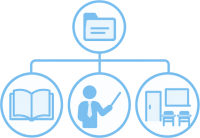
The Resources pane serves as the program’s database. This is where you define terms, days, time scales or periods, subjects, groups, students, teachers, rooms, and equipment. Resources can be entered manually, one by one, or imported, as described in the last chapter of the user’s guide. This section explains the role of each type of resource, how to enter resources, how to edit their properties, and the meaning of each property.
4. Activities

Activities are the building blocks of the timetable. An activity brings together several resources that are scheduled at the same time. For example, a subject, a teacher, a group of students, and a room can all be combined into a single activity. When an activity is scheduled, all of its participating resources are booked for that time. In this sense, timetabling is essentially the process of deciding when each activity takes place. This section explains how activities are entered in the Activities pane and describes the different properties of activities.
5. Interactive Timetabling

In Interactive mode, activities are scheduled using drag and drop. To schedule an activity, simply drag it from the Activities list onto the timetable. Existing cells can be moved or copied in the same way. While dragging an activity or cell, the program highlights the time slots where it can be scheduled without creating conflicts. This section also explains how to define resource availability and view statistical information about resource allocation.
6. Conflicts

A conflict occurs when two activities are scheduled in a way that causes them to interfere with each other. The most common type of conflict is a double booking of a resource, such as a room being assigned to two activities at the same time. The program continuously monitors your changes and automatically warns you whenever a conflict occurs. You can also view all existing timetable conflicts at any time in the Conflicts pane.
7. Combinations
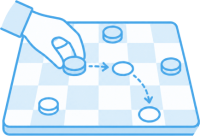
The Combinations engine is a powerful, semi-automatic tool that helps you find multi-step ways to move a cell, schedule an activity, fill a cell, or move an activity to a different room — without creating conflicts. This section explains the Combinations pane and shows how it can help you resolve "dead-end" situations, where there is no simple or straightforward way to perform these actions.
8. Automatic Timetabling

In Automatic mode, the program builds the timetable based on the data and constraints you have entered. It can generate a timetable entirely from scratch or complete a partially constructed one. If you change the constraints at any point, the program can take the existing timetable and adjust it to meet the new requirements. This chapter explains how to launch the automatic solver and provides a high-level overview of how it works.
9. Constraints

To produce desirable results in automatic timetable construction, the program needs to understand your exact requirements for the timetable. Constraints allow you to communicate these requirements to the software by setting upper and lower limits on different aspects of the timetable. For example, you can limit the number of gaps (free periods in the middle of the day) in a teacher’s timetable, or limit how many times an activity may be scheduled on the same day. There are many types of constraints. This section describes the available constraints and explains how to enter them.
10. Student Enrollment
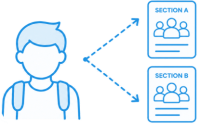
Individual student timetables can be created by enrolling students in activities, either manually or automatically based on their elective subject choices. The software maximizes enrollment by evaluating all possible section combinations for each student while taking into account timetable conflicts, section capacity limits, and optional gender-based enrollment caps.
11. Changes

In most schools, the timetable is planned in advance, before the term begins. However, once the semester is underway, each day may require adjustments due to unanticipated changes, such as sick leave or other unexpected events. By switching to Changes mode, you can easily record and manage these day-to-day updates. This section explains exactly how to do that.
12. Reports
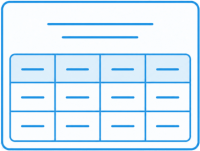
A report is a table that displays information in rows and columns. The program can generate a variety of report types, including resource lists, planned activities, scheduled activities and more. This section explains all available report types and shows how to filter and sort the data, as well as how to customize the information displayed and the report's appearance. Reports can be printed or exported to PDF or CSV files.
13. Printing and Exporting

The timetable and reports can be printed or exported. The graphical timetable can be exported as a PDF file, an image, a website, or a slideshow presentation. Text-based reports can also be exported to a text file, such as a CSV file, which can then be opened in programs like Excel. This section explains how to print and export data and describes the available print and export settings.
14. Importing Data
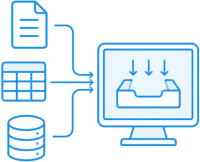
The software provides a very powerful import capability. It allows you to import text files, XML files, and even data from websites. The program can accept virtually any data format, because during the import process you specify what type of data is contained in each column or field of the imported file. This section demonstrates how to import resources and activities into the program.
15. Working Online

When you subscribe to the program, you receive the credentials for your server. You need to connect to this server when you start working with the program. This section explains how to connect to the server, how to create a new file on it or upload an existing one, and how to manage the users who are allowed to connect to the server.
16. Subscription

Our software is provided as a cloud-based service, and as such requires a subscription. This chapter covers frequently asked questions about our subscription model and the cloud-based aspects of the software. It also explains the concept of concurrent users, which determines how many users can work on a server at the same time and how this affects the subscription price.